Showing posts with label Tutorial. Show all posts

Thursday, July 22, 2010

Classic Template for blogger

Good afternoon guys!
Just finish off my lunch and feel like updating my blog but not sure what to write :P
So what to do when you have nothing to write but want to keep your blog update?
Make a tutorial lah :D

So today, I just want to make a tutorial on how to turn your blog template into simple classic template (a.k.a. minima template).

Lately, blogspot has been upgraded and they have added new features like blogger template designer where you can choose any design template provided with its pretty background


So why do I want to change this? The template is pretty much how I like right?
Well sometimes, you just want to tweak the blog a bit, change the background to you liking anytime you want. You can get massive collections of gorgeous background from the web. My favourite of all time is Shabby.

So when you want to have your own choice of background, you need a plain background so your new background won't intertwined with your template. Just like a piece of paper. If you want to start your sketch, you need a blank paper right? :)

Ok. So blogspot used to have this feature where changing the template to minima the easiest way. However, with the new feature, it's been, well, lost. :P

To make your template back to simple minima, classic, go to dashboard > design tab > edit html
 scroll down until the bottom and you will find 'old templates'. click on the 'select layout template'. 


for minima template, tick on the 1st template > minima
and you're done! :)

now you can go and look for those gorgeous background you've been eyeing for for your blog and start making up your blog  :)

Good luck!

Wednesday, May 12, 2010

How to make photos appear bigger in blog?

When I first started blogging, I had zero knowledge on how to blog. Be it from writing an entry, uploading photos or even change the background! But I love to learn. All these blog makeover were self thought. I learned practically everything from the net. From A to Z. Now I can even change the html codes myself ! :P

Sometimes I do got few emails from readers on how to change the fonts, how to change the background etc and I would love to received such mails! Honestly! So if you have any inquiry on blog design, please do no hesitate to drop me a line. I will try my best to assist you :)

Anyways, today's blog tutorial is about how to make your photos appear bigger in your blog entry. It's really simple.

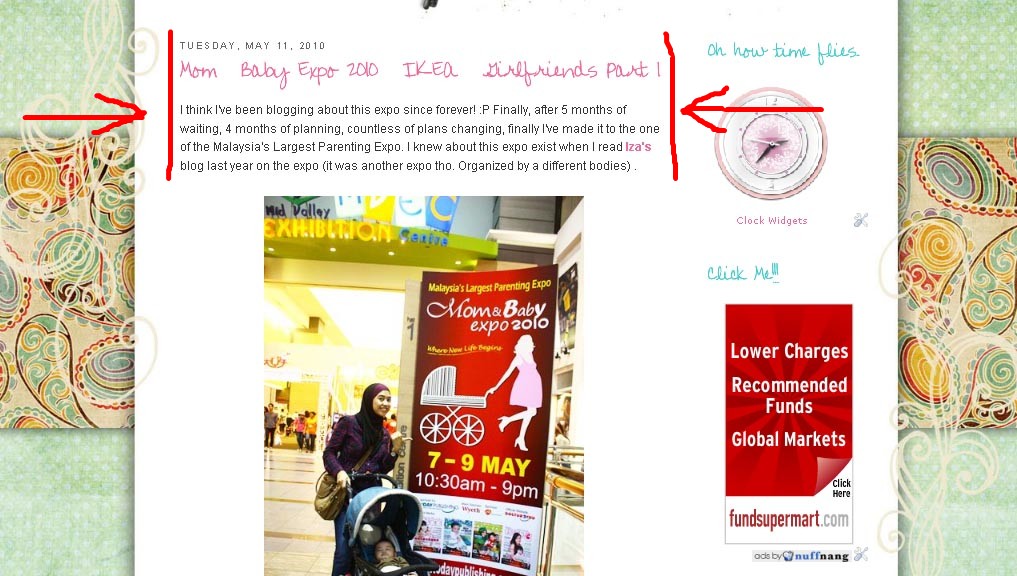
Step 1 : You must know your main wrapper's width so you can set your photo width to fit your blog. What's main wrapper? (see red arrow below)


im using 2-column template, the main wrapper is where your blog entry is and side-bar wrapper is where you place your gadgets, ads etc.I set my main wrapper to 610px. To find this html codes, Go to your Dashboard. Click on Layout, then Edit HTML.

Look in that code and find the line that says <#main-wrapper>
(Quick Tip: Click CTRL-F to search for <#main-wrapper> to easily find it in all that code)


Step 2 : Now I want to upload this photo to my blog post and make it bigger


The button will appear on the screen once the photo being uploaded (see below), then click large.


Step 3 : When the photo has been enlarged, look at the codes by clicking Edit HTML button next to the compose


Those highlighted in red needs to be changed in order to make the photo bigger.However, before you change it, you need to know the size of your photo that you want to upload in the blog by right-click on the image you want to upload. I use photoshop to edit the photos to the desire size which is width 600px.


I changed my photo to 600px width because my main wrapper is 610px. Normal blog template is 450px. So it's up to you to change it to which size you desire.

It is important to change s400 to s800 because this will effect your image quality!

Now my photo is already enlarged! Wasn't that easy? :)


Drop me an email if you didn't get it the first time :)

Thank you for looking and good luck!!